 DailyWall
 Take vitamins / medicine
 Water the plants
In DailyWall, tap + → Set up a habit → Health → Take vitamins / medicine. Type what you take and the dose (both optional), choose once, twice or 3 times a day, set the times and how it relates to meals. A paper appears on your wall and Lock Screen every day, with one dot per dose, and you tap + after each one.
"Did I take it this morning?" is one of the most common small worries there is. Vitamins and daily tablets are easy to forget precisely because they take five seconds: there's no moment that sticks in your memory, so by lunchtime you genuinely can't tell whether you took one or only thought about it. DailyWall solves the memory part with a small paper on your Lock Screen. It says what you take and when, and once you tap it, it shows as done. One glance at the clock answers the question.
Why a visible reminder works better than an alarm
Alarms are good at interrupting you and bad at remembering for you. You swipe the notification away while your hands are full, promise yourself you'll take the tablet in a minute, and the minute never comes. Worse, the alarm leaves no trace: two hours later you can't tell whether you acted on it.
A paper on the Lock Screen works the other way round. It doesn't shout, but it stays until you tap it, and it keeps the answer for you. An empty dot means not yet; a filled dot means done. That record is the real value of a pill tracker, especially for things you take every day, where today blurs into yesterday.
DailyWall is a habit and reminder tool, not a medical device. For medicines where timing really matters, keep using whatever your doctor or pharmacist recommends and treat the paper as an extra, visible check.
Practical ways to never forget a dose
The most reliable routines attach the tablet to something you already do without thinking. A few tactics that work for most people:
Tick the steps as you go
Set up your vitamin reminder in DailyWall
The name, the dose and any meal note are written on the paper itself, so you see "Vitamin D · 1 tablet" rather than a vague "take pills". With two or three doses a day you still get one paper, with a dot for each dose, and a reminder at each time you set. Once the paper is done for the day, the reminder stays silent.
Tick the steps as you go
What it looks like on your Lock Screen
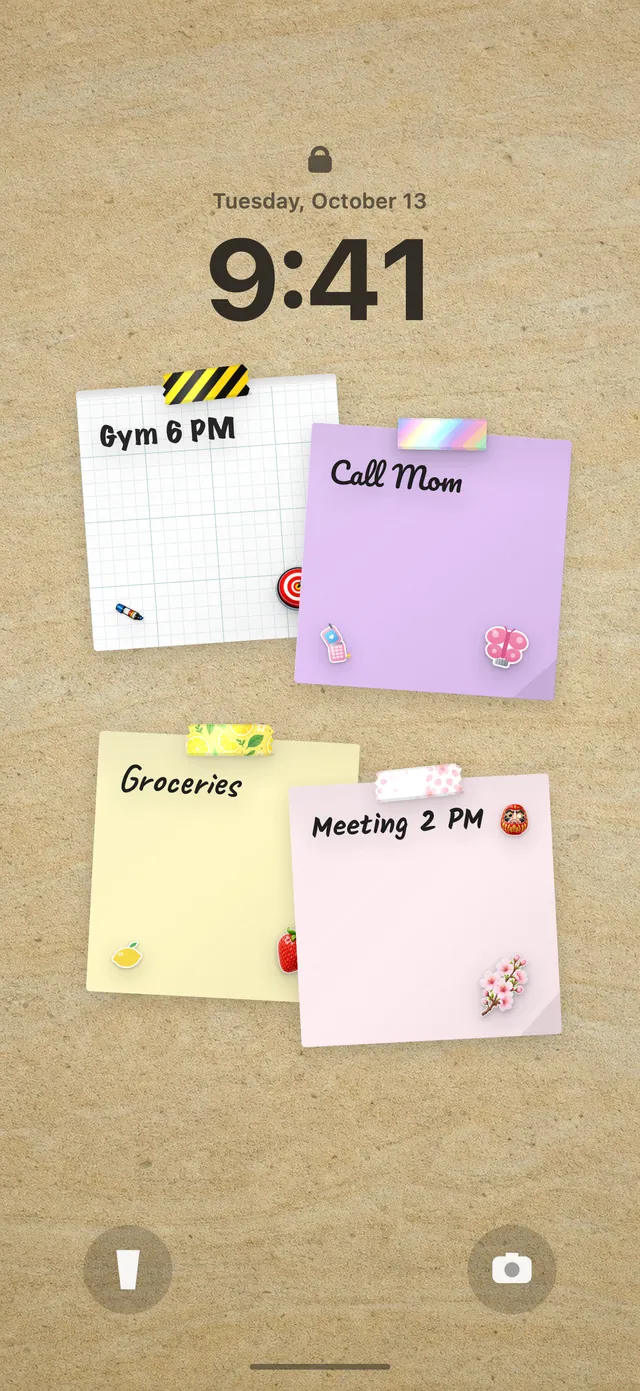
Your DailyWall wall is your Lock Screen wallpaper, so the paper sits right under the clock. After taking a dose, open DailyWall and tap + on the paper; when you close the app, the one-time Shortcuts automation refreshes the wallpaper. Next time you pick up your phone, the filled dot is your proof. If you haven't set up the wallpaper yet, see how to put notes on your iPhone Lock Screen.
The vitamin paper has its own look: three washi tapes (pastel capsules, orange slices and soft polka-dot stripes) and three stickers, including a cheerful capsule and a little weekly pill box. They only appear on habit papers, so your reminder doesn't get lost among your other notes.
A note on privacy
Anything on your Lock Screen can be read by people near your phone, without unlocking it. For a multivitamin that rarely matters, but you may not want a prescription's name on display. Both the name and the dose are optional: leave them empty, or write something neutral like "Morning" or "Evening tablet". The reminder works exactly the same.
Missed a dose or a day?
DailyWall doesn't punish you. A paper you didn't finish isn't carried over to tomorrow; it stays faded on its own day, there's no streak to break and no red warning. Tomorrow a fresh paper is waiting.
What you should do about the missed dose itself is a medical question, not an app question. Check the leaflet or ask your pharmacist; for many medicines the advice is not to double up, but it varies. The faded paper simply helps you answer honestly when someone asks whether you took it.
A 7-day starter plan
Tick the steps as you go
Questions people ask
Can DailyWall remind me to take medicine more than once a day?
Yes. Choose once, twice or 3 times a day and set a time for each. You get one paper a day with a dot per dose and a reminder at each time; once the paper is done, the reminder stays silent.
Will other people see my medicine on my Lock Screen?
They can see what's written on the paper. The medicine name and dose are optional, so leave them blank or use a neutral label if you'd rather keep it private.
Does DailyWall tell me how much to take?
No. It only shows what you typed. Doses and timing come from your doctor, your pharmacist or the product label.
Does it sync with Apple Health's Medications?
No. The vitamin habit lives on your DailyWall wall and doesn't read or write Apple Health data.
Is the pill reminder free?
Yes, your first habit is free and habit papers don't count toward the 5 free notes a day. Pro unlocks unlimited habits.
Can I use it for a short course, like a two-week supplement?
Yes. Set an end date when you create the habit and the paper stops appearing after that day.
 A water intake tracker you see every time you check the time
 A reading habit tracker that keeps your book in sight
 A workout tracker that shows up before your excuses do
 How to build a meditation habit that survives busy weeks
 How to start a journaling habit (and actually keep it)
 How to fix your sleep schedule with one gentle bedtime habit
 A daily walking habit you see every time you check the time
 A daily stretching routine you'll actually remember
 A no sugar challenge you see every time you pick up your phone
 How to wake up early (and keep doing it after the first week)
 A gratitude journal habit that takes two minutes a night
 How to build a language learning habit that survives busy weeks
 How to build a saving money habit, one small deposit a week