 DailyWall
Short answer: add the Reminders Lock Screen widget for a few items, use a to-do app’s widget for a count or the next task, or make the list your wallpaper so the whole list, with ticks, is on the Lock Screen and refreshes itself.
Option 1: the Reminders widget
- Touch and hold the Lock Screen and tap Customize, then choose the Lock Screen.
- Tap the widget area under the clock and add Reminders.
- Tap the widget to choose which list it shows.
Pros: built in, free. Cons: two or three items at most, one colour, no checkboxes you can see at a glance.
Option 2: a to-do app widget
Many to-do apps, DailyWall included, have Lock Screen widgets. DailyWall’s shows how many notes are left today, the next note, or one line above the clock. Controls can also put “new note” and “complete the next note” on the Lock Screen.
Pros: quick. Cons: still small and monochrome; you see the next task, not the day.
Option 3: the list as your wallpaper
For the whole list, make it the wallpaper. In DailyWall, write the day as notes on a wall, with a checklist for errands and separate notes for the big things. A Shortcuts automation turns the wall into your Lock Screen every time you close the app, so ticked items show their ticks.
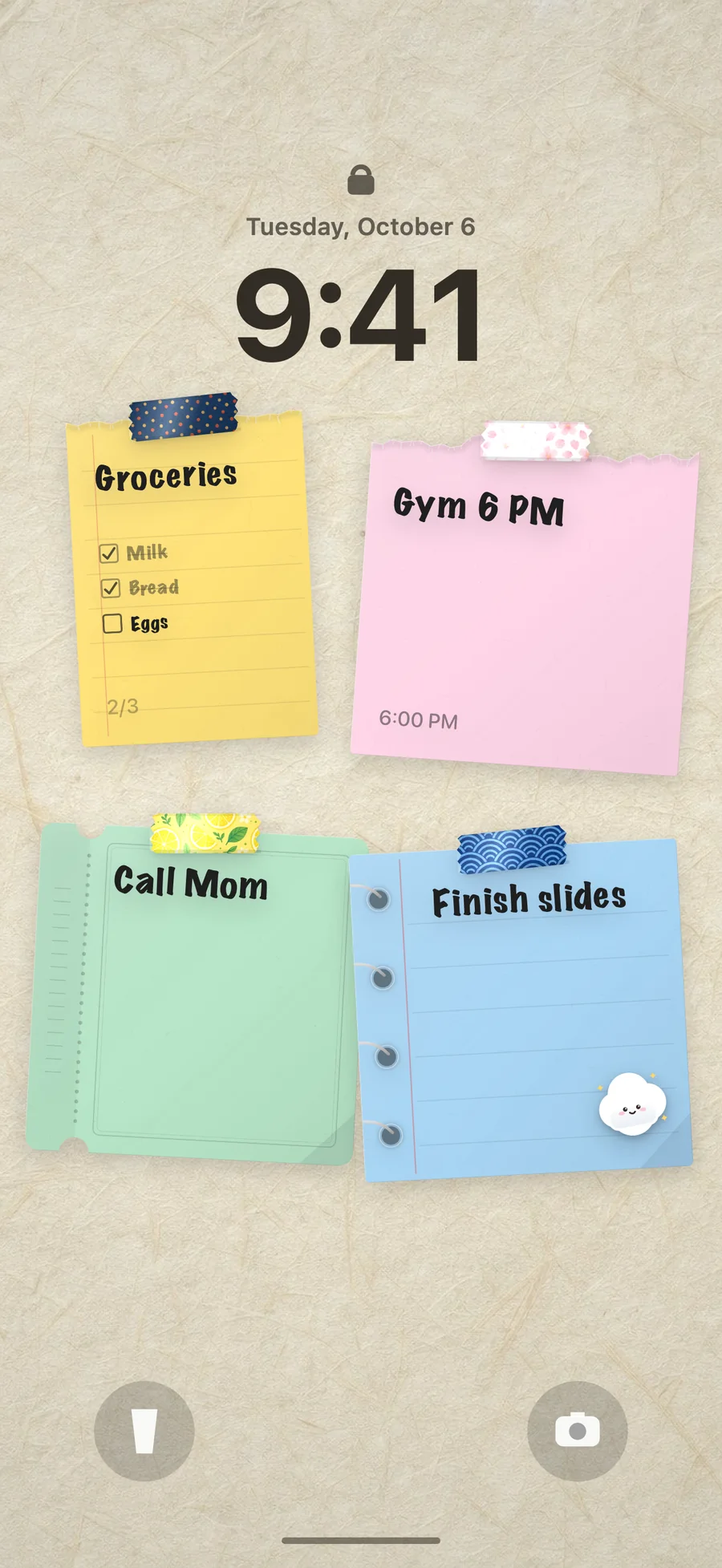
Setup takes about two minutes, once: follow the step-by-step guide, with screenshots for iOS 26 and iOS 27.
Which one should you use?
| Reminders widget | To-do widget | To-do wallpaper | |
|---|---|---|---|
| How much you see | 2–3 items | Count or next task | The whole day |
| Ticks visible | No | No | Yes |
| Colours and notes | No | No | Yes |
| Cost | Free | Depends on the app | Free in DailyWall |
You can combine them: the wallpaper for the day, a small widget for the count.
FAQ
Can I show Reminders on the iPhone Lock Screen?
Yes, with the Reminders Lock Screen widget. It shows a few items from one list.
How do I make my to-do list my wallpaper?
Write it in DailyWall and set up the Lock Screen automation once. The wallpaper refreshes from the list every time you close the app.