 DailyWall
Apple’s Notes widget lives on the Home Screen (one note or a folder). On the Lock Screen iOS only allows small one-tint widgets. For notes that look like paper, or a note you share with someone, use a sticky-note widget app.
A notes widget puts the thing you must not forget where you already look. On iPhone that can mean the Home Screen, the Lock Screen, StandBy or your Apple Watch, and each place has different rules. Here is how to add Apple’s Notes widget, what it can and cannot do, and how sticky-note widgets fill the gaps.
Add the Apple Notes widget to the Home Screen
The single-note widget shows the start of one note; the folder widget lists your recent notes. Tapping opens Notes.
Tick the steps as you go
Can you put the Notes widget on the Lock Screen?
This is where most people get stuck. Lock Screen widgets are small and drawn in a single tint, and Apple’s Notes app has focused on Home Screen widgets and a Quick Note control rather than a Lock Screen widget that shows the text of a note. Apple changes the widget line-up between iOS versions, so check your own iPhone: touch and hold the Lock Screen → Customize → Lock Screen → tap the widget area and look for Notes.
If it is not there, you have three alternatives: the Reminders widget (a few items from a list), a third-party notes app with a Lock Screen widget, or a wallpaper made from your notes.
Sticky-note widgets that look like paper
Apple’s widgets are plain by design. If you want your notes to look like notes, a sticky-notes app can draw them as paper.
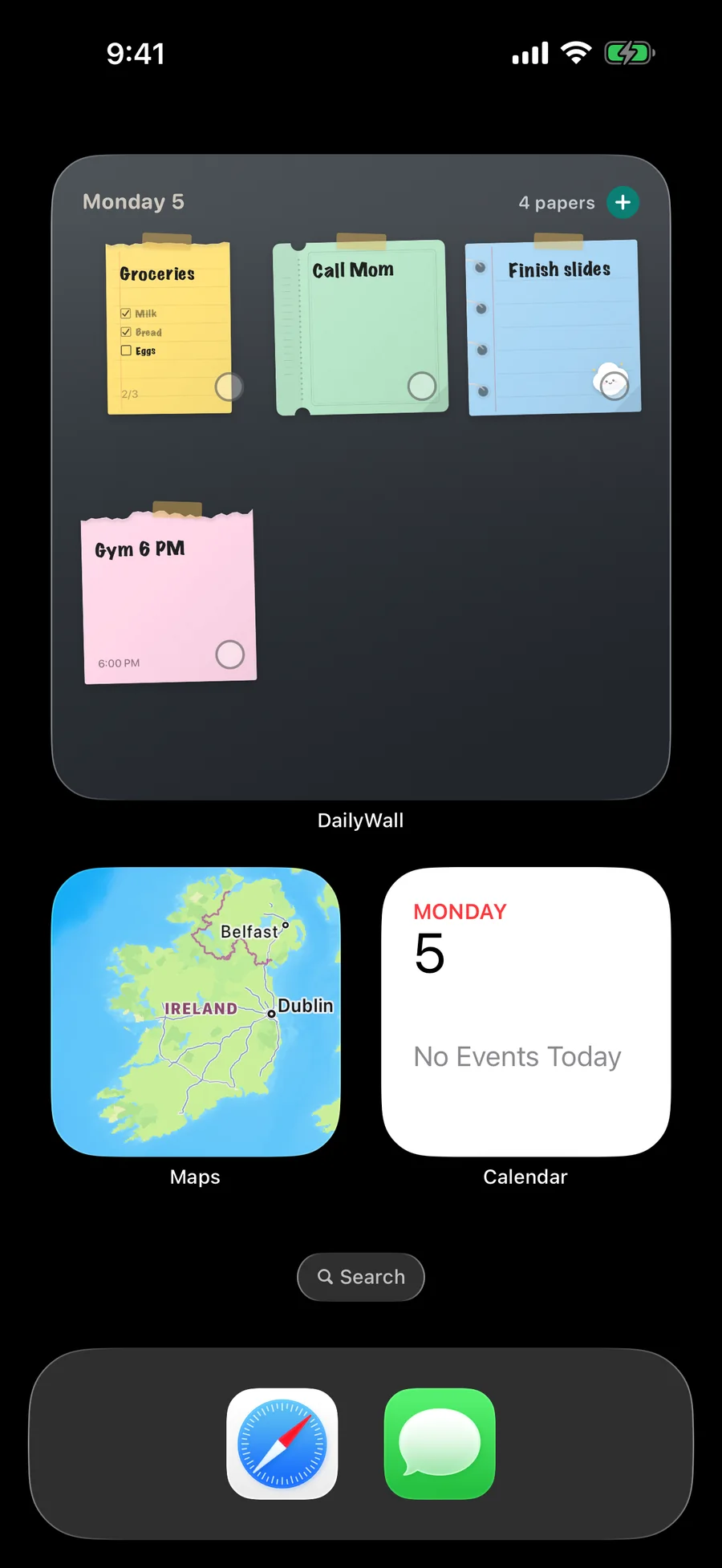
DailyWall’s Home Screen widget shows today’s papers as they hang on your wall, with their tape, stickers and handwriting, in small, medium and large sizes (and extra large on iPad). Tap the ring on a note to mark it done without opening the app; the widget, the wall and the Lock Screen all follow.
Notes on the Lock Screen: widget vs wallpaper
DailyWall also has a Lock Screen widget: it shows how many notes are left today, the next note or one line above the clock. That is as much as iOS allows a Lock Screen widget to show.
For whole notes in colour, DailyWall uses the wallpaper instead: a Shortcuts automation, set up once, turns today’s wall into your Lock Screen every time you close the app. Use both: the wallpaper for the notes, the widget for the count.
Shared notes widget
A shared wall in DailyWall gets its own Home Screen widget, so you see at a glance who hung what: your partner’s “dinner’s on me”, a roommate’s “bins tonight”, the trip packing list. Notes from a shared wall can also appear on your Lock Screen.
StandBy, Control Center and Apple Watch
StandBy (iPhone on its side while charging) shows Home Screen widgets, including notes widgets, in large type.
Controls let you put “new note” or “complete the next note” in Control Center or on the Lock Screen.
On Apple Watch, DailyWall shows today’s notes and their checklists, with a complication for the watch face.
Which notes widget setup should you choose?
Just one note you keep returning to (a packing list, a Wi-Fi password for guests): the Apple Notes single-note widget on the Home Screen.
Tasks with due times: the Reminders widget on the Lock Screen and Home Screen.
Today’s notes, visible without unlocking, in colour: a notes wallpaper on the Lock Screen plus a small widget for the count.
Notes with someone else: a shared notes widget, so their notes appear without a chat thread.
Tips for widgets you will actually look at
Put the widget where your thumb goes. The first Home Screen page and the row under the clock get the most glances.
Keep one widget per job. Two note widgets showing overlapping things train you to ignore both.
Use Smart Stacks for less important widgets, so the notes widget keeps its own spot.
Review it weekly. A widget showing a note from last month is just decoration.
Questions people ask
Does Apple Notes have a Lock Screen widget?
Apple Notes has focused on Home Screen widgets and a Quick Note control. Check Customize → Lock Screen → Add Widgets on your iOS version; if Notes is missing, use Reminders, a notes app’s widget or a notes wallpaper.
Why is my Notes widget not working?
Remove and re-add the widget, make sure the note is not locked, restart the iPhone, and check that Notes has iCloud sync turned on if the note comes from another device.
Is there a sticky notes widget for iPhone?
Yes. DailyWall’s widget shows your notes as paper sticky notes with tape and stickers, and you can tick them off from the widget.
Can I see my notes widget on the Lock Screen in colour?
Lock Screen widgets are drawn in one tint by iOS. For colour, put your notes on the wallpaper; DailyWall keeps it updated automatically.
Do DailyWall widgets work on iPad?
Yes, on iPadOS 17 and later, including the extra-large size.
Can I put a notes widget in StandBy?
Yes. StandBy shows Home Screen widgets when your iPhone is charging on its side; add the notes widget to a StandBy stack.