 DailyWall
The Lock Screens people keep are pretty and useful at once: a calm background plus one thing you need today, like a short checklist, a countdown or a kind note. Keep the top third clear for the clock and stick to two or three colours.
A pretty Lock Screen is nice for a week. A pretty Lock Screen that tells you something is one you keep. These fifteen ideas mix a calm, aesthetic look with a job to do: remind you, plan your day, make you smile. For each one you will find how to make it with built-in iOS tools and, where it helps, with DailyWall, the app that turns paper sticky notes into your Lock Screen.
Before you start: the Lock Screen layout in iOS 26
Every Lock Screen has three zones. The top third holds the date, the clock and up to four small widgets. The middle is yours. The bottom strip holds the flashlight and camera buttons (or controls you chose) and notifications.
Good Lock Screens put the interesting part in the middle and keep the background calm behind the clock. Touch and hold the Lock Screen and tap Customize to change the clock font, colour and widgets; tap the plus to start a new Lock Screen and keep several to switch between.
Planning ideas
1. Top three today. Three sticky notes, one priority each, on a plain cork or linen background. Nothing else on screen.
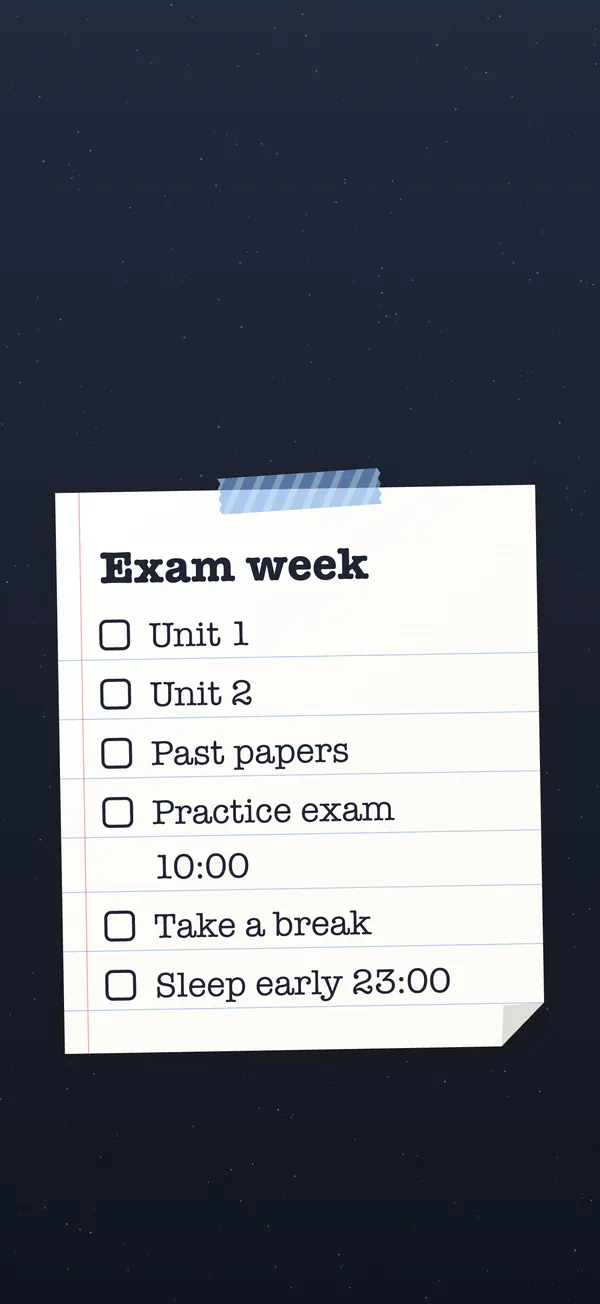
2. The checklist. A lined-paper list you tick off during the day. A static image cannot show ticks; in DailyWall the ticks appear on the Lock Screen the next time you close the app.
3. Week at a glance. One small note per weekday with the one thing that matters that day.
4. Errand map. Pharmacy, post office, groceries, in the order you will pass them.
Aesthetic ideas
5. Soft pastel paper. Lilac, mint or blush notes on a plaster wall, a single washi tape strip on top. Calm and readable.
6. Dark and minimal. One light note on a midnight background, chalk or typewriter handwriting. Easy on the eyes at night.
7. Journal page. Kraft paper, a stamp-style sticker, calligraphy. Looks like a bullet journal spread.
8. Seasonal. Pumpkins and ghosts in October, snow and lights in December, a fresh start in January. Swap the stickers, keep the list.
Feel-good ideas
9. Word of the year. One word, very big, in the middle. You will read it hundreds of times.
10. Affirmation note. A short sentence in your own handwriting style. Change it weekly so it does not fade into the background.
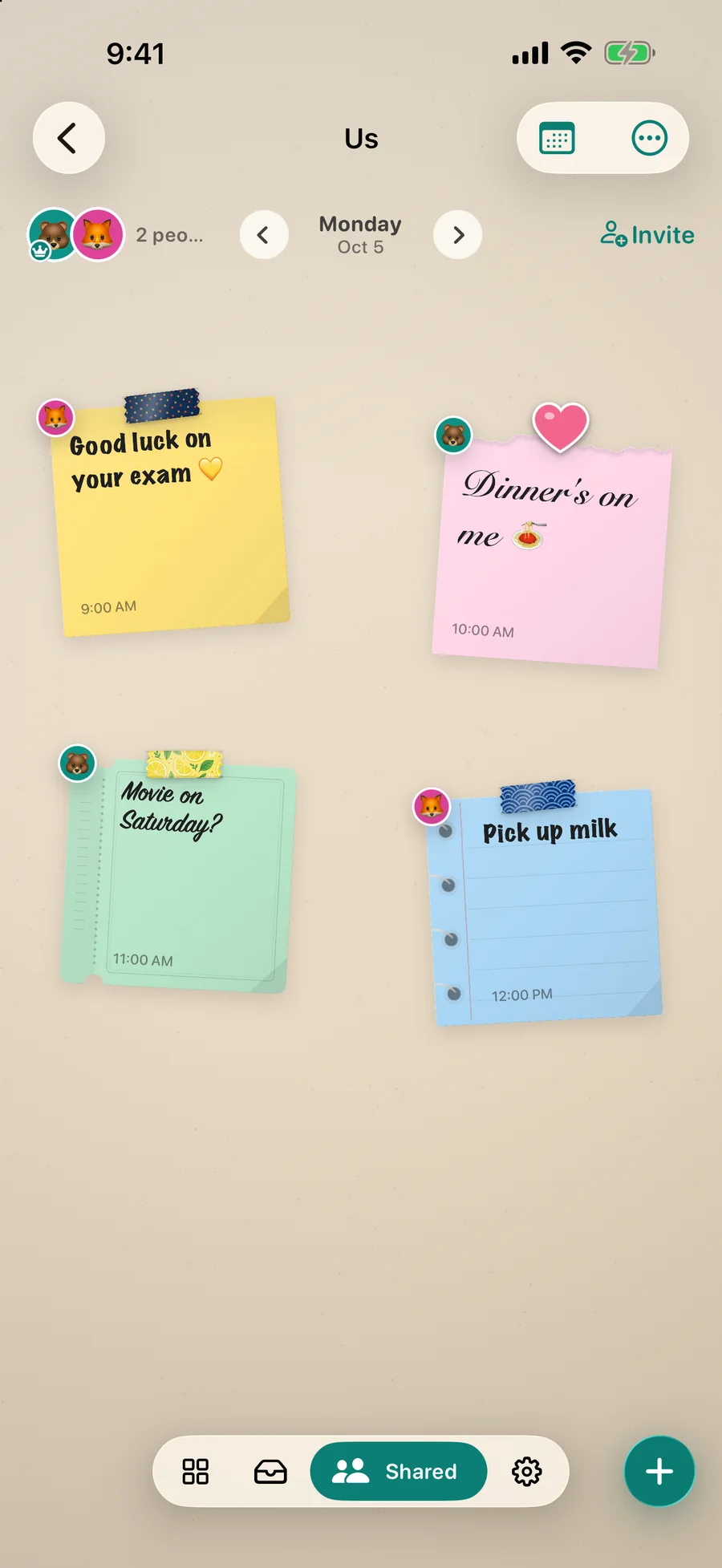
11. A note from your person. With a shared wall in DailyWall, your partner’s “good luck today” can sit on your Lock Screen next to your own notes, with their avatar in the corner.
12. Gratitude line. Each morning, one thing you are looking forward to.
Life-admin ideas
13. Study plan. Subjects as a checklist, exam time on a bright note. DailyWall has a ready-made exam wall to start from.
14. Morning routine. Water, stretch, vitamins, a ten-minute walk. Tick them before you leave.
15. Moving or wedding countdown. Boxes, utilities, invitations, fittings. There are ready-made walls for both in DailyWall.
How to make these with built-in iOS tools
For ideas that do not change (a word of the year, a quote), add text to a photo with Markup in Photos, or use our free to-do list wallpaper maker, then set the image as your wallpaper.
For a live element, add widgets: Reminders for a few tasks, Calendar for the next event, Weather for the day. Link a Lock Screen to a Focus so work and weekend each get their own.
Tick the steps as you go
Mistakes that make a Lock Screen hard to read
Text under the clock. The time is drawn over the top third; anything important there disappears.
Too many widgets. Four widgets plus a busy photo plus notes is noise. Choose one star of the show.
Low contrast. Pastel text on a pastel photo looks lovely in a mockup and is unreadable in sunlight.
Never changing it. The brain stops noticing a screen that never changes. Rotate colours or stickers weekly, or let the content change on its own.
How to make them with DailyWall (and keep them current)
Every idea above that involves a list or a note works best when the wallpaper updates itself. In DailyWall you build the screen as a wall: pick from more than fifty walls (cork, linen, plaster, kraft, foil and more) or design your own, hang paper notes in different shapes, write in one of its handwriting styles, and decorate with 270 stickers and 180 washi tapes.
A one-time Shortcuts automation sets the wall as your Lock Screen each time you close the app. What you see on the wall is what you get on the Lock Screen, pixel for pixel, with room left for the clock.
Questions people ask
How do I make my iPhone Lock Screen aesthetic?
Keep the background calm, put one focal element in the middle, match the clock colour to it, and limit widgets to the ones you use. Paper notes on a textured wall are an easy way to get a cohesive look.
Can I have different Lock Screens for work and home?
Yes. Create several Lock Screens and link each to a Focus mode; the right one appears when the Focus turns on.
Do aesthetic wallpapers with notes update by themselves?
A saved image does not. DailyWall rebuilds the wallpaper from your notes every time you close the app.
Are these ideas free to make?
Yes. The built-in methods are free, and DailyWall’s Lock Screen wallpaper, five notes a day and a free set of stickers, tapes and walls cost nothing.