 DailyWall
Short answer: there are three ways. A Notes control opens a note from the Lock Screen but does not show it. A widget shows a line or two of text. A wallpaper made from your notes, refreshed by a Shortcuts automation, shows whole notes and checklists; DailyWall sets that up in about two minutes.
Way 1: the Notes control
On iOS 18 and later you can replace the flashlight or camera button at the bottom of the Lock Screen with a Notes control, or add Quick Note to Control Center. Touch and hold the Lock Screen, tap Customize, then the Lock Screen, and swap a corner button.
Good for: jotting something down fast. Not for: seeing a note. It opens an empty note; nothing is displayed while the phone is locked.
Way 2: a widget
Lock Screen widgets sit under the clock. Reminders can show a few items from a list, and note apps (DailyWall included) offer small note widgets.
Good for: a count or one short line. Not for: real notes. iOS draws these widgets small and in one colour, with room for a line or two.
Way 3: a wallpaper that updates itself
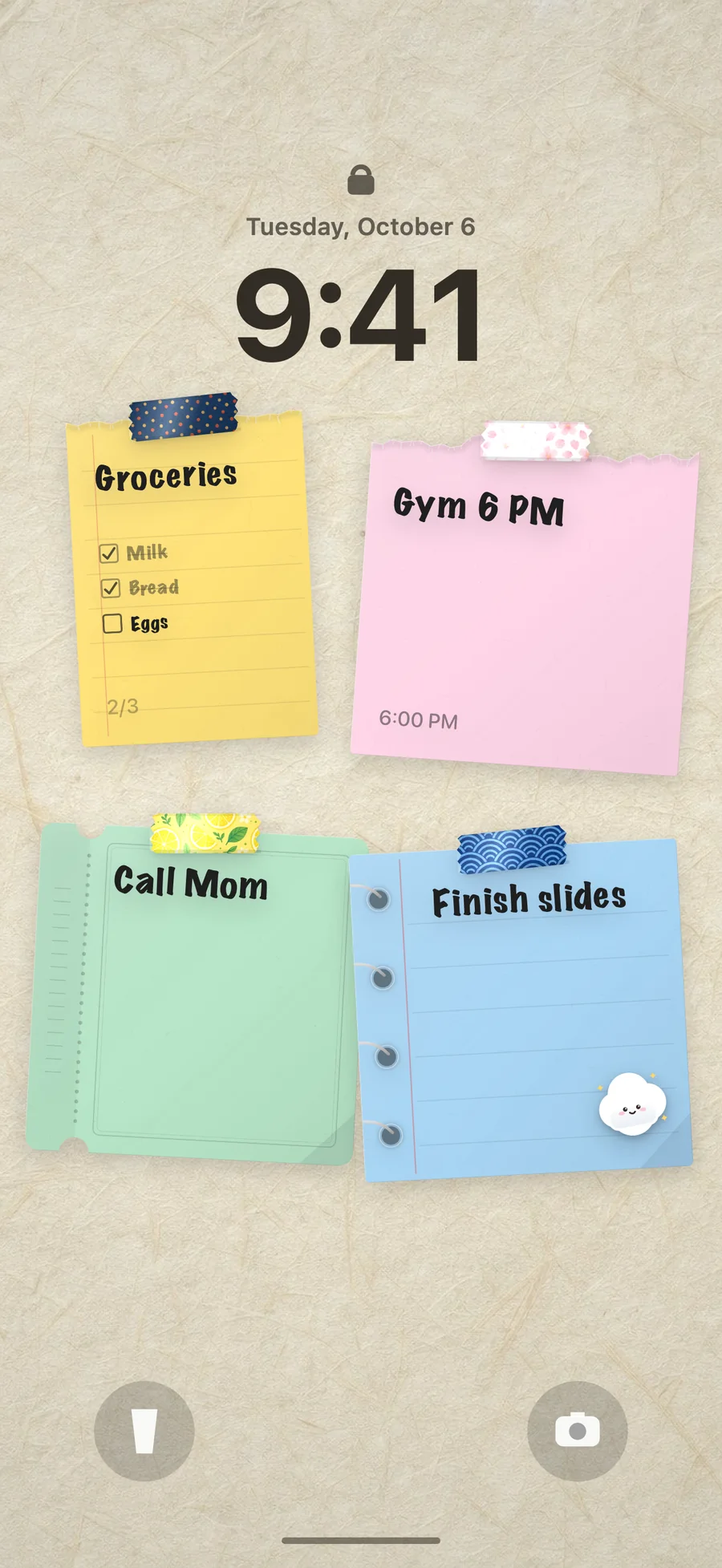
The wallpaper has the whole screen. If it is made from your notes and refreshed automatically, the Lock Screen shows your actual notes, in colour, with checklists, times and stickers.
Step 1: Write your notes
Open DailyWall and tap anywhere on the wall. A sheet of paper appears: type on it, draw on it or turn it into a checklist. Drag notes where you want them; that is exactly where they will sit on the Lock Screen.
Step 2: Add the shortcut
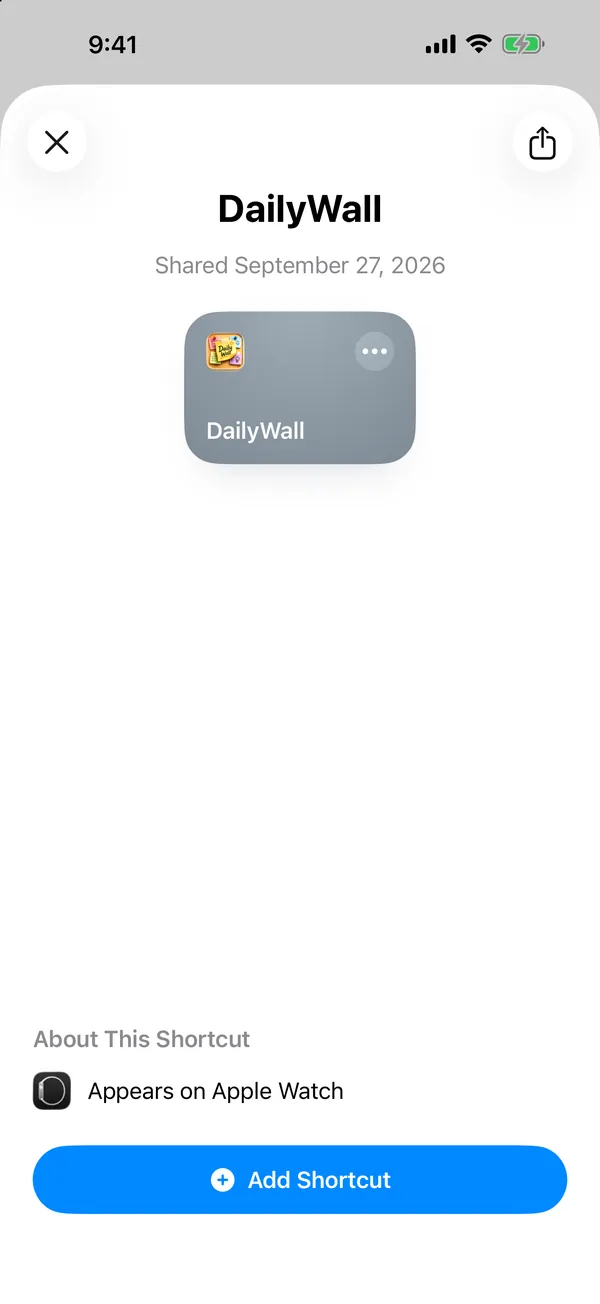
In DailyWall open Lock Screen and tap Start setup. The app picks the steps for your iOS version and opens the ready-made DailyWall shortcut. Tap Add Shortcut.
Step 3 on iOS 27: turn the automation on
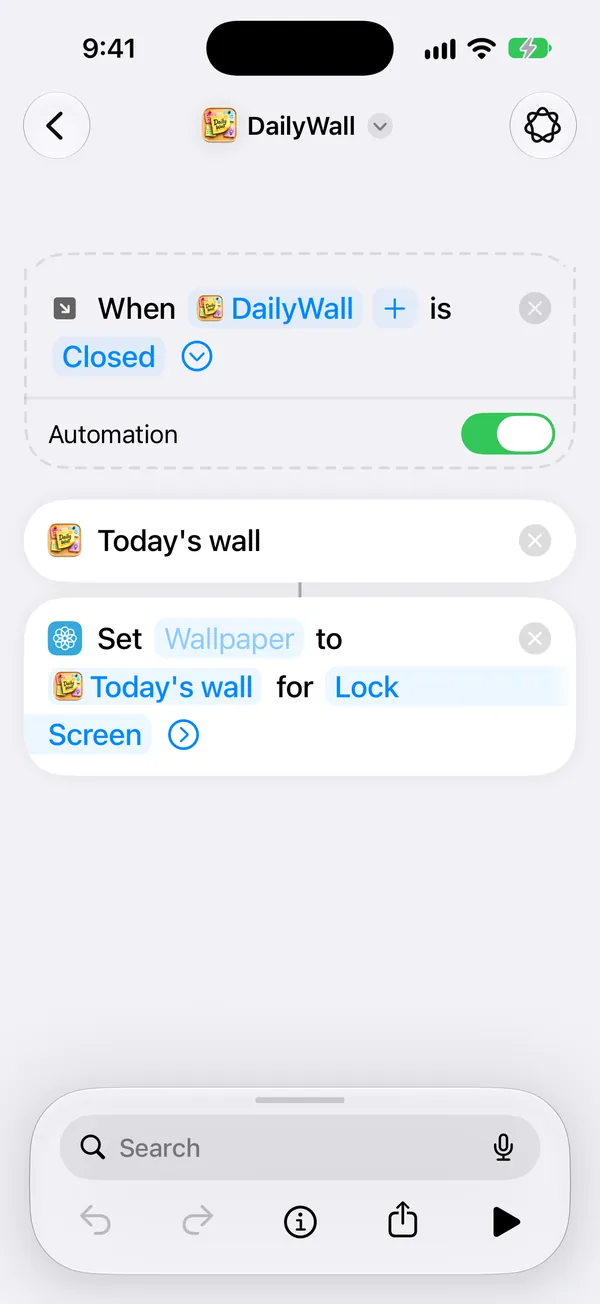
On iOS 27 the trigger lives inside the shortcut. Touch and hold the DailyWall shortcut, choose Edit, tap Edit again in the top corner, then tap the small arrow next to Closed and switch Automation on. “Allow Running When Locked” is already on.
Step 3 on iOS 26: create the automation
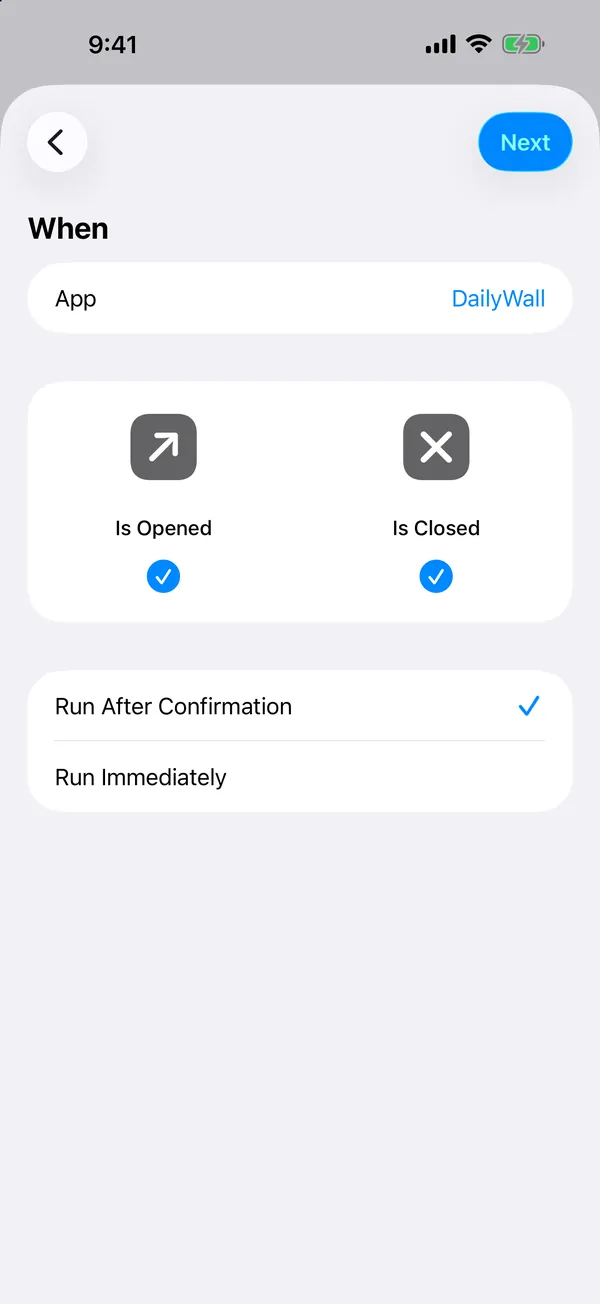
- Open the Automation tab in Shortcuts and tap New Automation.
- Scroll to App, tap Choose, pick DailyWall and tap Done.
- Tick Is Closed and untick Is Opened.
- Choose Run Immediately, tap Next, and pick the grey DailyWall tile under My Shortcuts.
Step 4: Check it
Back in DailyWall, the setup runs a real test: the app closes, the shortcut sets the wallpaper, and DailyWall tells you it worked. Lock your phone and your notes are there.
The three ways compared
| Notes control | Widget | Notes wallpaper | |
|---|---|---|---|
| Shows a note while locked | No | One or two lines | Whole notes |
| Checklists, colours, stickers | No | No | Yes |
| Updates by itself | – | Yes | Yes, when you close the app |
| Setup | Customize the Lock Screen | Add a widget | One automation, about 2 minutes |
Good to know
- Your photos stay clean. The image goes straight to Shortcuts; nothing is saved to Photos.
- Clock and widgets stay. iOS draws the clock and your Lock Screen widgets over the wallpaper as usual; DailyWall leaves room for them.
- Free. The Lock Screen wall is part of the free plan.
FAQ
Can I put a note on my Lock Screen without an app?
Not one that updates. You can save a picture with text and set it as your wallpaper, but you would have to remake it for every change. DailyWall rebuilds the wallpaper from your notes automatically.
Does it work on iOS 26 and iOS 27?
Yes. iOS 27 moved automations inside the shortcut; the setup in DailyWall detects your version and shows the right steps.
Why does the Lock Screen not change right away?
The automation runs when you close DailyWall. Leave the app once after editing and the Lock Screen updates.
Can I do this on Android?
DailyWall is for iPhone and iPad only.