 DailyWall
Type your tasks, pick a paper and a background, tap Download. You get a PNG at your iPhone’s exact Lock Screen size, made right here in your browser. Then: Photos → Share → Use as Wallpaper.
How to set it as your Lock Screen
You can also go through Settings → Wallpaper → Add New Wallpaper → Photos and pick the image.
Tick the steps as you go
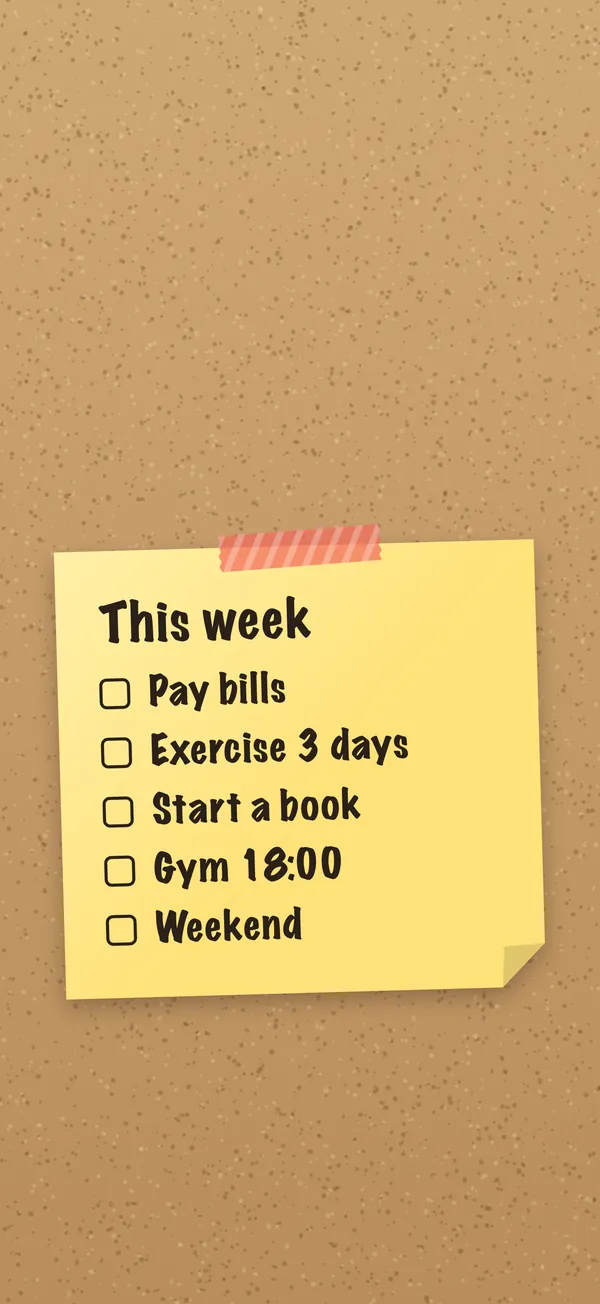
Tips for a list you will actually read
Keep it to three to six lines. A Lock Screen is seen for a second at a time; short lines in big handwriting beat a long list in small type.
Start each line with a verb: “Call the bank”, not “bank”. It tells future-you exactly what to do.
Use the clock guide. iOS puts the time, date and widgets in the top third and the flashlight and camera buttons at the bottom. The maker keeps your note between them.
Pick contrast over cute. Dark text on a light paper reads best in sunlight; the Midnight background with a yellow note is easy to read at night.
Best sizes for every iPhone
Opened on an iPhone, the maker detects your screen and exports at its native resolution, so the wallpaper is sharp and needs no cropping.
On a computer, choose your model: Pro Max models use 1320 × 2868 (2024 and later) or 1290 × 2796, standard and Pro models around 1179 × 2556 or 1206 × 2622, and iPhone SE 750 × 1334. iPad uses 2048 × 2732.
If iOS zooms the wallpaper slightly when you set it, pinch out to fit; the note stays in the safe middle area either way.
The catch with any wallpaper you make once
A wallpaper is a photo. When you finish “Buy milk”, the picture still says “Buy milk”, and tomorrow it shows yesterday’s list. Most people make one, use it for a day or two and go back to forgetting.
DailyWall fixes exactly that. You keep your list as paper notes in the app, and a one-time Shortcuts automation turns the wall into your Lock Screen every time you close it. Tick a task and the Lock Screen shows the tick; tomorrow’s wall replaces today’s on its own. Same paper look, never out of date.
Ideas to try
Top three today: one priority per line, numbers style, yellow paper on cork.
Grocery run: checkboxes on notebook paper, the aisle order in your head.
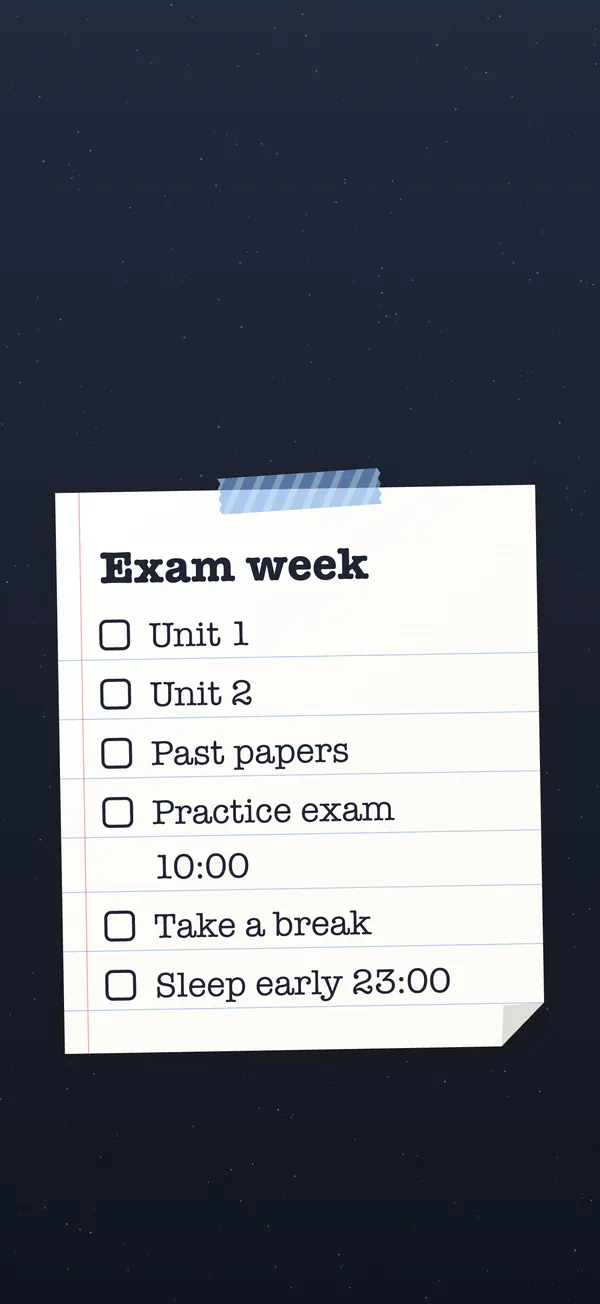
Exam week: subjects as checkboxes and the exam time as the title.
Morning routine: water, stretch, vitamins, ten-minute walk, on mint paper.
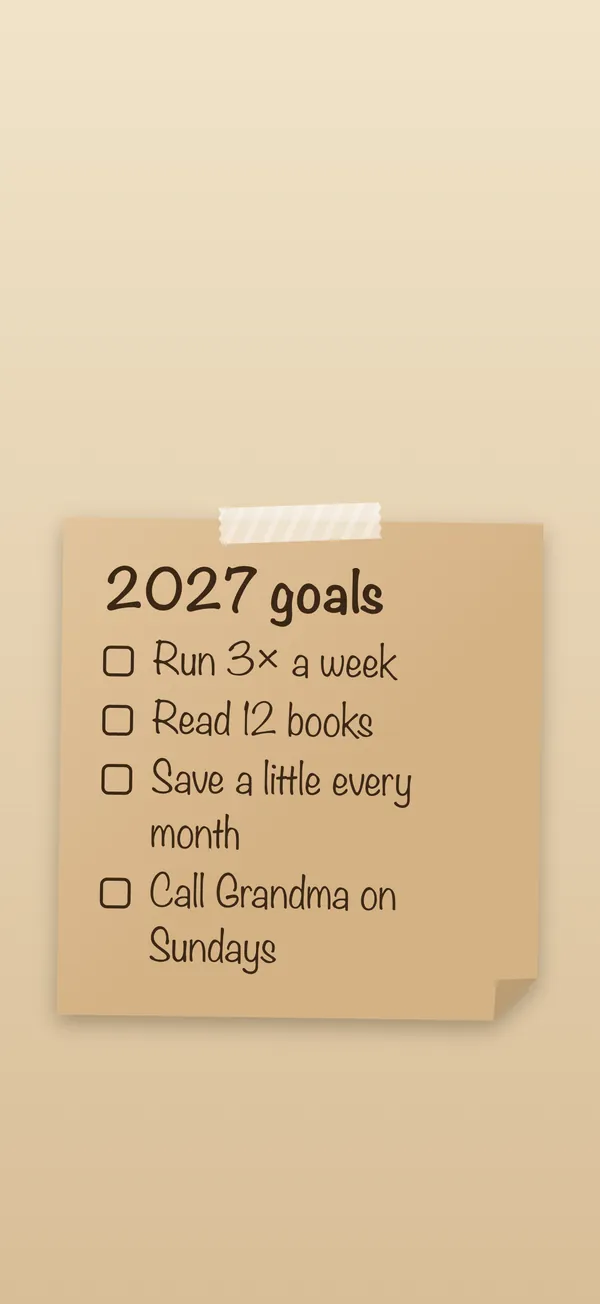
Goals for the year: three to five goals on kraft paper, typewriter hand.
Questions people ask
Is the to-do list wallpaper maker free?
Yes. No sign-up, no watermark, no limit. It runs in your browser.
Is my list uploaded anywhere?
No. The image is drawn on your device with your browser’s canvas; nothing you type is sent to a server.
What size is the wallpaper?
It matches your iPhone automatically when you open the page on the phone; on a computer you can pick the model. The default is 1320 × 2868 pixels.
Can the wallpaper update itself when I finish a task?
A downloaded image cannot. The DailyWall app can: it rebuilds your Lock Screen from your notes every time you close it, through a Shortcuts automation you set up once.
Does it work for Android or desktop wallpapers?
The maker is tuned for iPhone, but the PNG works on any phone. Pick the size closest to your screen.
Can I use my own photo as the background?
The maker uses drawn backgrounds so the text stays readable. To write on your own photo, use Markup in the Photos app, as explained in our guide to putting text on the Lock Screen.