 DailyWall
 Eat fruit & veggies
 Water the plants
Aim for a set number of servings a day (five is the classic goal) and add one to each meal and snack. In DailyWall, tap + → Set up a habit → Health → Eat fruit & veggies and set How many servings a day? (1–10, 5 by default). The paper stays on your wall and Lock Screen all day, and each tap fills one dot.
Most people know they should eat more fruit and vegetables. The gap isn't knowledge; it's that a busy day passes and the vegetables never happen. Counting servings closes that gap, because "two more today" is something you can act on at dinner. This page covers what a serving looks like, easy ways to fit more into meals you already eat, and how DailyWall puts an "Eat fruit & veggies" paper on your iPhone Lock Screen that fills one dot for each serving.
Why five, and what counts as a serving
The World Health Organization recommends at least 400 g of fruit and vegetables a day, which many countries turn into a simple "5 a day" message: five servings of about 80 g each. Guidelines differ a little between countries, so treat five as a friendly target rather than a rule.
A serving is roughly a handful: one apple, banana or orange; two small fruits like plums or kiwis; a big handful of salad; three heaped tablespoons of cooked vegetables or beans; a small glass of juice (usually counted only once a day). Potatoes are generally not counted in 5-a-day guidance.
This page is general information, not medical or dietary advice. If you have a medical condition or a special diet, follow your doctor's or dietitian's guidance.
Easy ways to add a serving
Tick the steps as you go
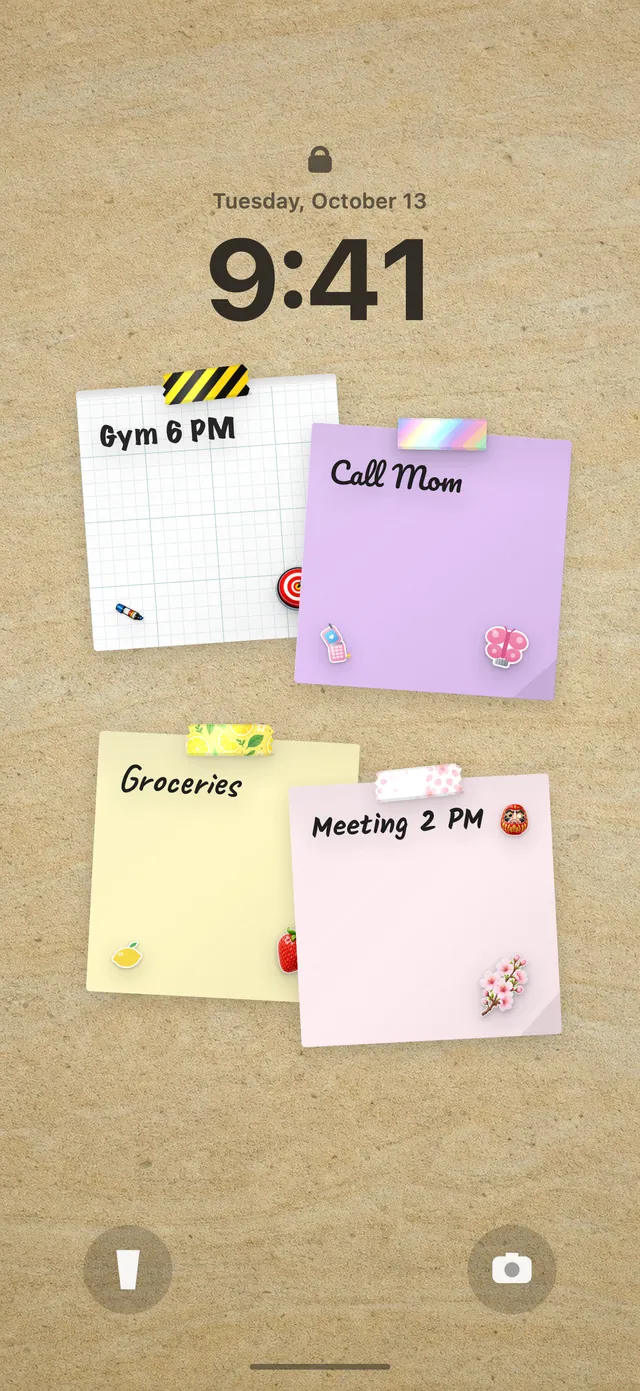
Set up your fruit and veg habit in DailyWall
The paper comes with its own washi tapes (apples, carrots and peas; citrus slices; garden vegetables) and stickers (a shiny red apple, a smiling carrot, a basket of fruit and vegetables), used only on this habit.
Tick the steps as you go
Dots that fill as the day goes
Because your DailyWall wall is your Lock Screen wallpaper, the paper sits under the clock with one dot per serving. Had an apple? Open DailyWall and tap + on the paper; one dot fills. Seeing 3/5 in the afternoon is a gentle reminder to put two vegetables on the dinner plate.
It pairs naturally with drinking enough water and a sugar-free day, and you can keep your shopping list next to it on the same wall.
Not every day will be a five
Travel days, takeaway nights and busy weeks happen. DailyWall keeps no streak: a day with two servings simply stays faded at 2/5 and tomorrow starts at zero again. There's no catching up to do.
If five feels far away, set the goal to three for now. A target you hit most days builds the habit; once three is easy, raise it.
Questions people ask
How many servings of fruit and vegetables should I eat a day?
The WHO recommends at least 400 g a day, often shown as 5 servings of about 80 g. National guidelines vary slightly; for personal advice, ask a doctor or dietitian.
Do frozen or canned vegetables count?
In most 5-a-day guidance, yes. Frozen and canned fruit and vegetables count; for canned, choose ones without added sugar or salt where possible.
Can I change the daily goal?
Yes. Set anything from 1 to 10 servings a day when you set up the habit, and change it later.
Is the fruit and veg tracker free?
Yes, your first habit is free and habit papers don't count toward the 5 free notes a day. Pro unlocks unlimited habits.
 A water intake tracker you see every time you check the time
 How to fix your sleep schedule with one gentle bedtime habit
 A vitamin and medicine reminder that sits under the clock
 A no sugar challenge you see every time you pick up your phone
 A reading habit tracker that keeps your book in sight
 A workout tracker that shows up before your excuses do
 How to build a meditation habit that survives busy weeks
 How to start a journaling habit (and actually keep it)