 DailyWall
 Screen-free hour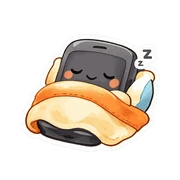
 Water the plants
Pick one hour a day (the evening is easiest), put the phone in another room and plan something for that hour. In DailyWall, tap + → Set up a habit → Mind → Screen-free hour, set the Start time (21:00 by default) and How long? (15 minutes to 3 hours, 1 hour by default). The paper sits on your Lock Screen and fills in 15-minute dots as you go. For hard limits, add iPhone's own Downtime in Settings → Screen Time.
Most people who want less screen time don't need a stricter blocker. They need a clear, small promise: one hour, at the same time every evening, with the phone somewhere else. Blockers are easy to dismiss with one tap; a habit you've chosen is harder to argue with. This page explains why a fixed screen-free hour works better than vague limits, what to do with the hour, how to combine it with the Screen Time features already on your iPhone, and how DailyWall puts a "Screen-free hour" paper on your Lock Screen, which is exactly where you look when you're about to start scrolling.
Why one fixed hour beats "use my phone less"
"Use my phone less" has no start, no end and no moment where you can say it worked. A screen-free hour has all three. You know when it begins, you know what counts, and at the end you've either done it or you haven't. That clarity is what turns an intention into a habit.
It also protects the hour that matters most. For many people the last hour before bed is where the scrolling happens, and where it costs the most: later bedtimes, a busier head, mornings that start tired. Taking back just that one hour often changes how the next day feels more than shaving minutes off the whole day.
To be clear about what DailyWall is: it's a reminder that lives on your wall and Lock Screen. It doesn't block apps or read your Screen Time data. The commitment is yours; the paper keeps it in sight.
What to do with the hour
An empty hour gets filled by the phone again. Decide in advance what the hour is for. Ideas that work well:
Tick the steps as you go
Let your iPhone back you up
If you want a hard stop as well as a reminder, iOS already has the tools. In Settings → Screen Time you can schedule Downtime so only the apps you allow stay available, and set App Limits for the apps that pull you in. A Focus (for example Sleep or Personal) can silence notifications during the same hour.
These work well together with a habit paper: Screen Time sets the boundary, and the paper on your Lock Screen is the friendly reminder of why you set it, at the exact moment you pick up the phone.
Set up your screen-free hour in DailyWall
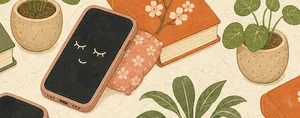
The paper comes with its own washi tapes (a sleeping phone among books and plants, soft clouds, puzzle pieces) and stickers (a phone tucked into bed, a potted plant, a board-game piece with dice), used only on this habit.
Tick the steps as you go
A paper right where the scrolling starts
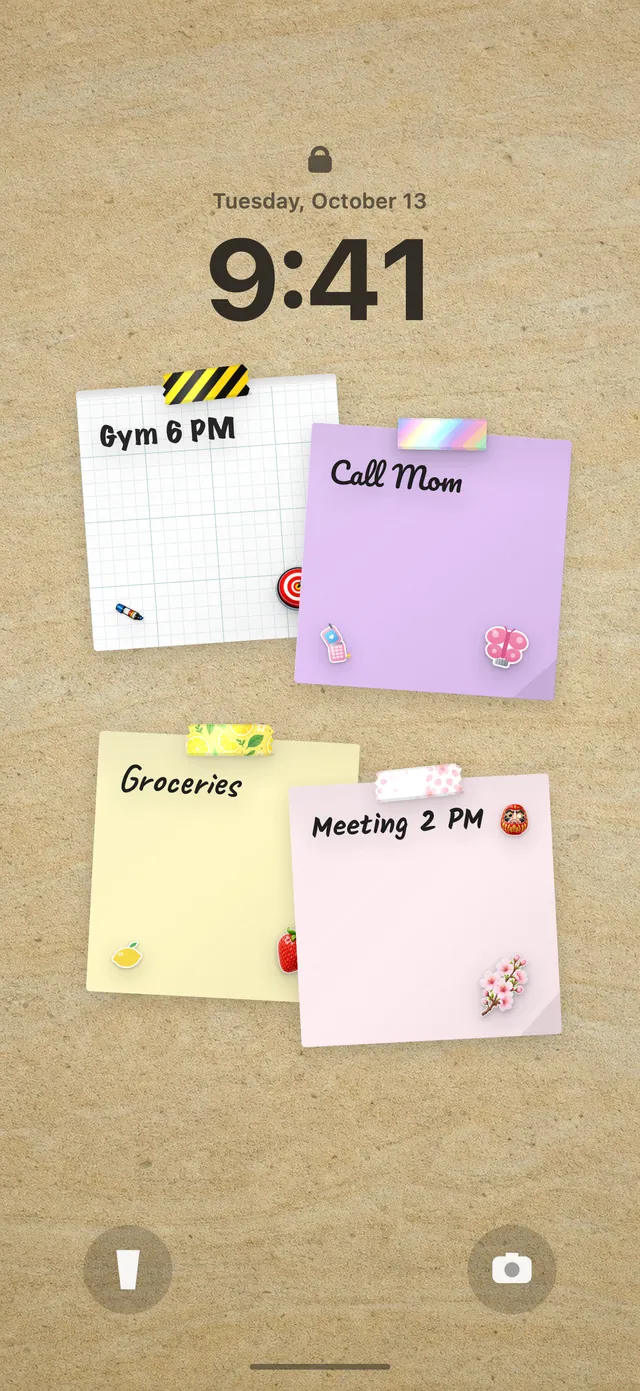
Because your DailyWall wall is also your Lock Screen wallpaper, the screen-free paper sits under the clock. When you pick the phone up at 21:05 out of habit, the first thing you see is your own promise. Often that's enough to put it back down.
Afterwards, open DailyWall and tap + on the paper to fill the dots. New to putting your wall on the Lock Screen? Our guide to putting notes on your iPhone Lock Screen covers the one-time Shortcuts setup.
Bad evening? No streak to lose
Some evenings you'll need the phone: a late message from work, a train to book, a call from family. DailyWall doesn't punish that. There's no streak counter; a missed paper just stays faded on its own day and tomorrow starts fresh.
If you keep missing it, make the promise smaller. Thirty minutes you actually keep is worth more than an hour you keep skipping. Once it feels normal, add another 15 minutes.
Questions people ask
Does DailyWall block apps during the screen-free hour?
No. DailyWall is a reminder on your wall and Lock Screen, not an app blocker. For hard limits, use Downtime and App Limits in Settings → Screen Time alongside it.
How long should a screen-free block be?
Start with something you'll actually keep, like 30 minutes or an hour in the evening. DailyWall lets you pick from 15 minutes to 3 hours, in 15-minute steps.
Can I do a screen-free morning instead of an evening?
Yes. Set the start time to the morning, for example 07:00, so the first hour of the day is yours before the feed.
What about a whole evening offline once a week?
DailyWall also has a separate Digital detox evening template, set to Sundays by default, if you'd like one longer break each week instead of a daily hour.
Is the screen-free habit free?
Yes, your first habit is free and habit papers don't count toward the 5 free notes a day. Pro unlocks unlimited habits.
 How to build a meditation habit that survives busy weeks
 How to start a journaling habit (and actually keep it)
 A gratitude journal habit that takes two minutes a night
 A water intake tracker you see every time you check the time
 A reading habit tracker that keeps your book in sight
 A workout tracker that shows up before your excuses do
 How to fix your sleep schedule with one gentle bedtime habit
 A vitamin and medicine reminder that sits under the clock