 DailyWall
Touch and hold the Lock Screen, tap Customize, add the Reminders widget under the clock and pick a list. It fits a few items in one tint; for a whole day of tasks, a to-do list wallpaper has more room.
Apple’s Reminders app can put your tasks right under the clock, and it takes less than a minute. This guide covers adding the widget, choosing what it shows, getting reminder alerts to stay visible, fixing a widget that will not update, and what to do when the widget is simply too small for your list.
Add the Reminders widget
Tick the steps as you go
Choose the list that helps most
Today shows what is due today across all lists, which is usually what you want under the clock.
A dedicated list such as “Top 3” keeps the widget short and deliberate: move only today’s priorities into it each morning.
Shared lists work too. If you share a Groceries list with your partner, the widget shows items either of you added.
Make reminder alerts stay on the Lock Screen
A reminder with a date and time sends a notification. To keep it visible: Settings → Notifications → Reminders → turn on Lock Screen, set the banner style to Persistent, and make sure Scheduled Summary is not holding it back.
Time Sensitive notifications from Reminders can break through a Focus. Turn that on in the Focus settings if you want important reminders to show even in Do Not Disturb.
Reminders widget not updating? Try this
Remove the widget and add it again. This fixes most stuck widgets.
Check that the chosen list still exists and that iCloud sync for Reminders is on (Settings → your name → iCloud).
Turn off Low Power Mode for a moment; it can delay background refreshes.
Restart the iPhone after an iOS update.
When the widget is too small
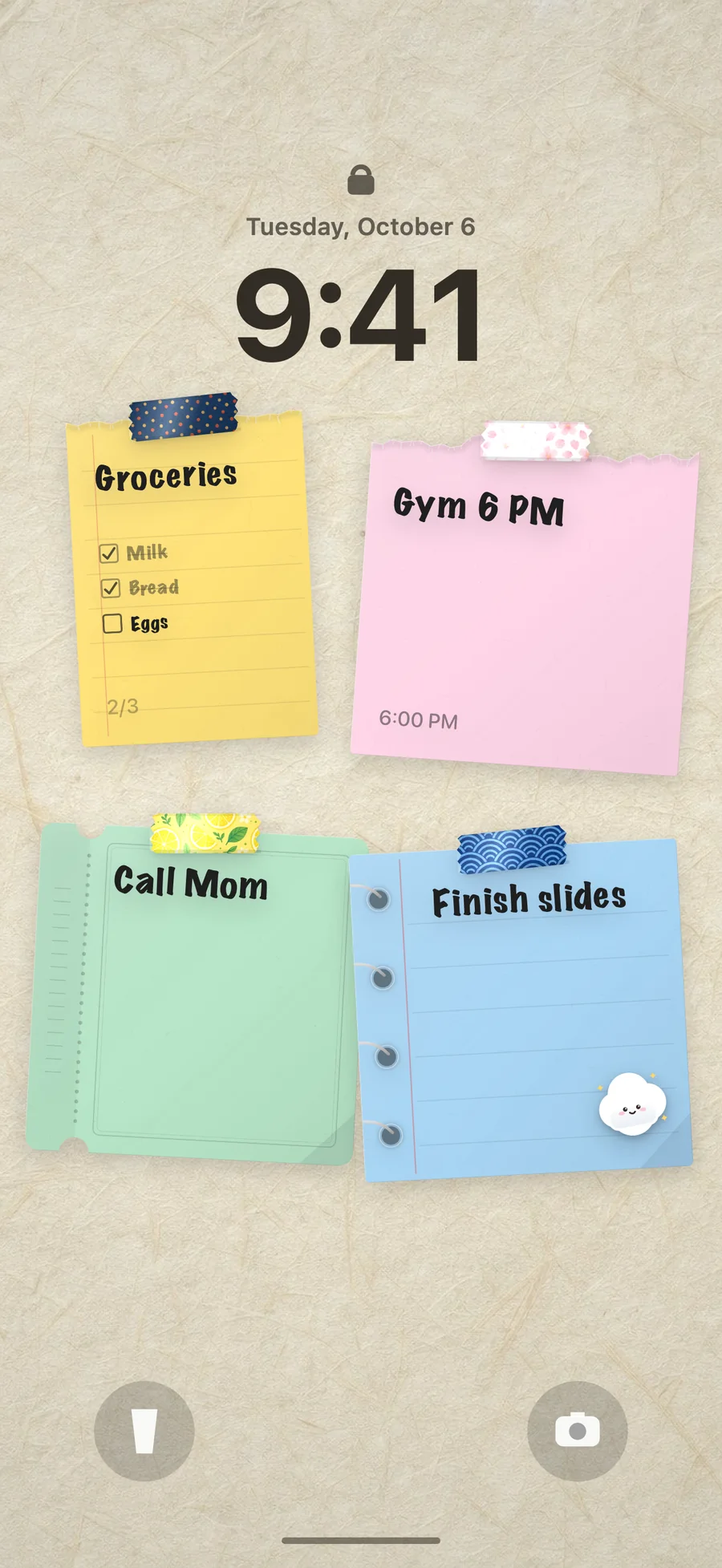
The Lock Screen widget shows a few items in one tint. That is a deliberate iOS limit, and no setting makes it larger. If you want your whole day on the Lock Screen, with ticks, colours and notes that are not tasks, the list has to become the wallpaper.
DailyWall does that. You write the day as paper notes on a wall, with checklists for errands and separate notes for the important things. Write a time inside a note, such as “call the dentist 10am”, and DailyWall offers to set a reminder for it. A Shortcuts automation, set up once, turns the wall into your Lock Screen each time you close the app; ticked items show their ticks.
A morning routine that keeps the Lock Screen honest
Spend one minute each morning moving today’s tasks into the list your widget shows. Delete or postpone what you will not do. The Lock Screen then shows a promise you can keep, not a guilt list.
In the evening, tick what you finished and move the rest to tomorrow. In DailyWall, unfinished notes can be moved to tomorrow from the note’s menu, and the optional morning refresh brings the new day’s wall to the Lock Screen before you wake up.
Reminders on Apple Watch and the Home Screen
The Reminders app has Home Screen widgets in several sizes; the large one shows many more items than the Lock Screen widget and lets you tick them off with a tap.
On Apple Watch, reminders appear in the Reminders app and as complications, so a glance at your wrist shows what is due.
DailyWall works the same way across devices: a Home Screen widget where you can tap a note’s ring to complete it, a Lock Screen widget, and an Apple Watch app with a complication.
Reminders vs a to-do wallpaper
Reminders widget: a few items, one tint, Siri and Mac sync, free.
To-do wallpaper in DailyWall: the whole day in colour, visible ticks, time-based reminders offered from your notes, Home Screen widget and Apple Watch, free for five notes a day.
Plenty of people use both: Reminders for recurring chores, the wallpaper for today’s plan.
Questions people ask
Can I put Reminders on my iPhone Lock Screen?
Yes. Touch and hold the Lock Screen → Customize → Lock Screen → Add Widgets → Reminders, then choose a list.
How do I make the Reminders widget bigger on the Lock Screen?
You cannot: the rectangular widget is the largest Lock Screen size. For a full list, make it your wallpaper with an app like DailyWall.
Why does my Reminders widget show nothing?
The chosen list may be empty or deleted. Tap the widget while customizing to pick another list, or remove and re-add it.
Can I tick off reminders from the Lock Screen?
You can mark a reminder done from its notification. DailyWall’s Control can complete your next open note from the Lock Screen or Control Center.
Do Reminders show on the Lock Screen in a Focus mode?
Notifications follow your Focus settings; allow Reminders or turn on Time Sensitive notifications for it. Widgets on a Lock Screen linked to that Focus always show.