 DailyWall
Put three short goals on your Lock Screen, where your eyes go dozens of times a day. Make a free goals wallpaper in two minutes, or keep a goals wall in DailyWall that changes as your plans do.
Most resolutions do not fail in a dramatic moment; they fade because we stop thinking about them by the third week of January. The simplest fix is to put them where your eyes go anyway. You unlock your phone dozens of times a day; if your goals are on the Lock Screen, you remember them dozens of times a day. Here is how to make a goals Lock Screen that works, three ways.
Why the Lock Screen works for goals
Out of sight really is out of mind. A goal written in a notebook is read when you open the notebook. A goal on the Lock Screen is read every time you check the time.
It also works as a gentle nudge before a choice: you pick up the phone to scroll, and the screen says “read 20 pages”. No notification, no app to open.
Write goals that fit on a Lock Screen
Three to five goals, no more. If everything is on the screen, nothing stands out.
Make them visible actions: “Run 3× a week” beats “get fit”; “Save €100 every month” beats “spend less”.
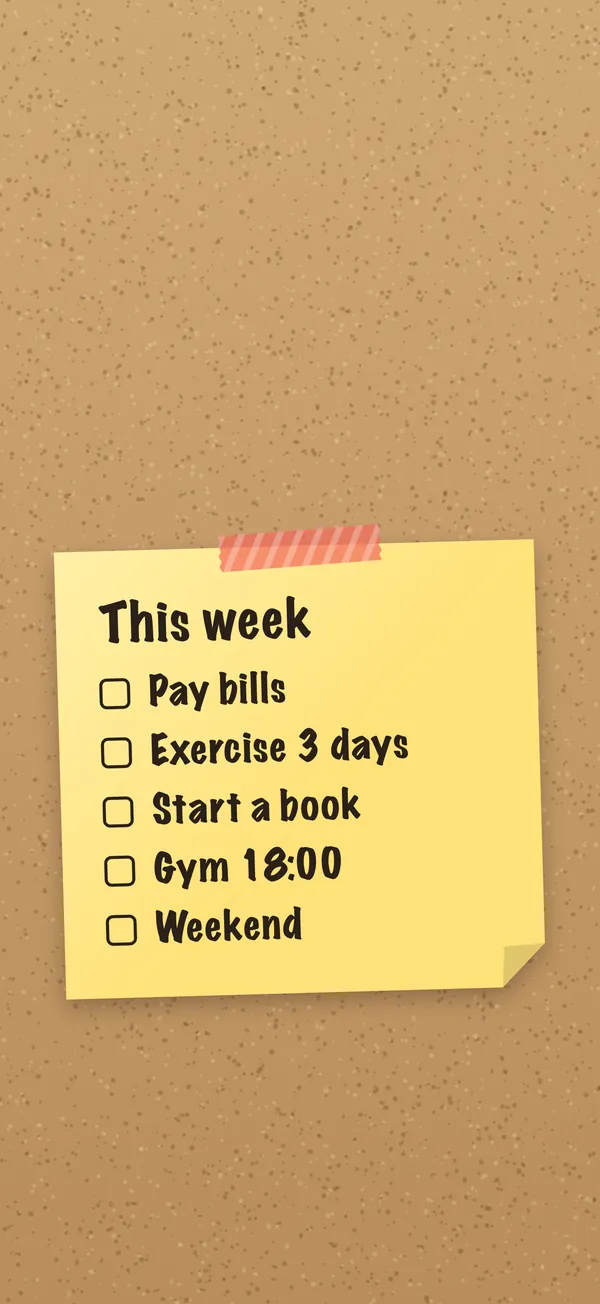
Add this week’s step. A goal for the year plus one small step for this week is far easier to act on than the goal alone.
Pick a word of the year if you prefer one big idea over a list: “Calm”, “Brave”, “Finish”.
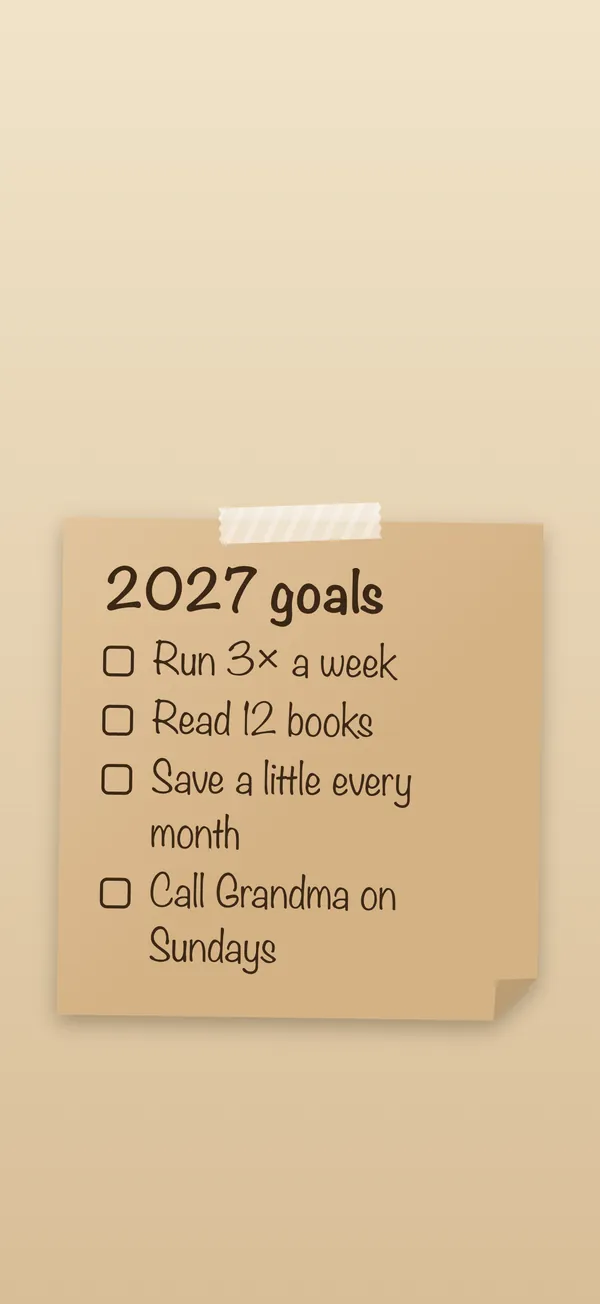
Way 1: a free goals wallpaper in two minutes
Perfect for goals that will not change all year. The only downside: you cannot tick anything off a picture.
Tick the steps as you go
Way 2: built-in iOS tools
Add text to a photo with Markup in the Photos app (Edit → Markup → plus → Text) and set it as the wallpaper.
Add a Reminders widget showing a “Goals” list, so this week’s steps appear under the clock.
Create a dedicated Lock Screen for the goals and link it to a Focus (for example Personal), so it appears in the evenings and on weekends.
Way 3: a goals wall that moves with you
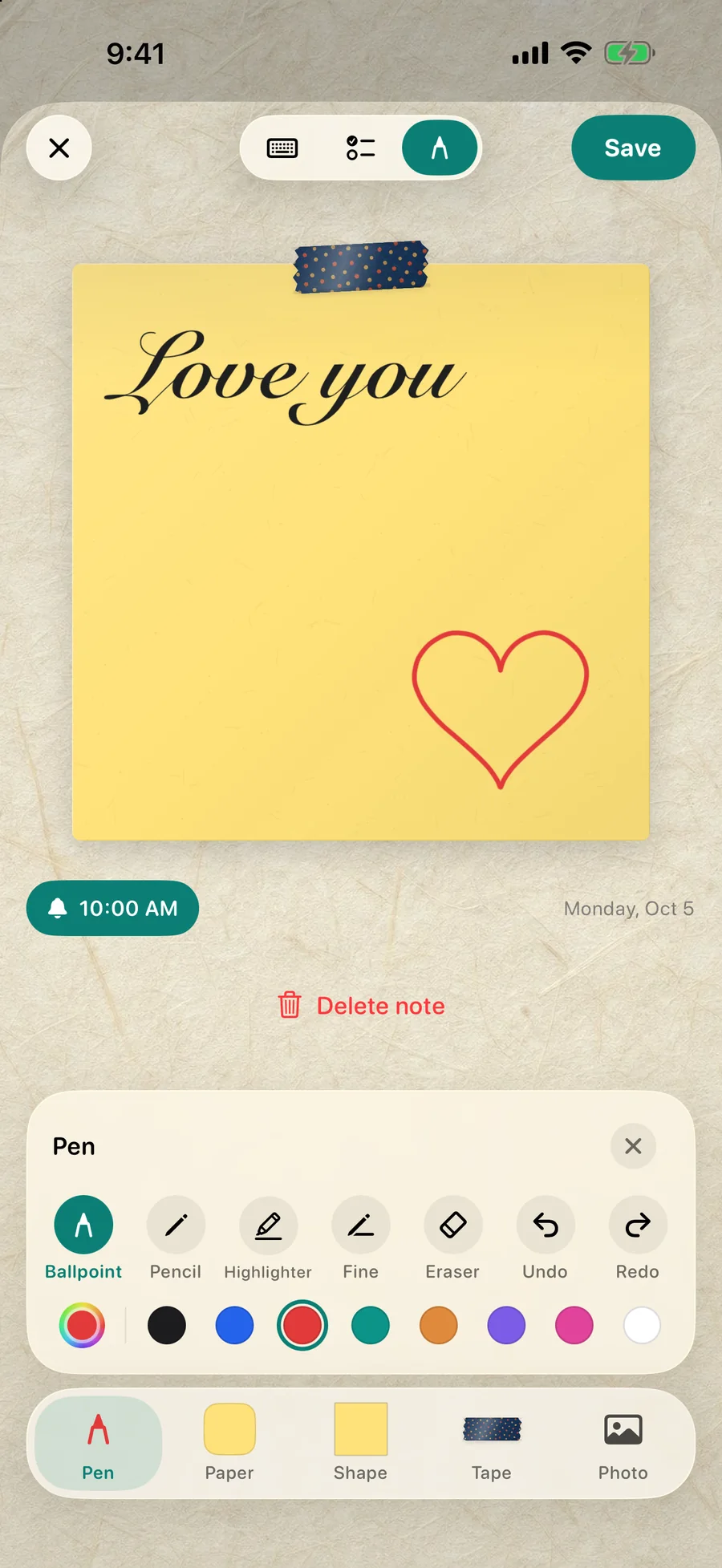
In DailyWall, the goals live on paper notes on a wall that becomes your Lock Screen through a one-time Shortcuts automation. That lets the screen change as you make progress:
One note per goal, each in its own colour and paper shape, with the year’s goal as the title and this week’s step as a checklist item.
Tick the step and the Lock Screen shows the tick the next time you close the app. Next week, write the next step.
Use the week view to plan steps ahead; the calendar marks every day that has notes.
Share a wall with a friend or partner who has the same goal; their notes appear on your wall, and you can react with a sticker.
Example: a goals Lock Screen for 2027
Here is a simple layout that fits any iPhone. At the top, the clock and date as usual. In the middle, three notes slightly overlapping, like paper pinned to a board:
A yellow note: “Run 3× a week” with this week’s step “Mon / Wed / Sat, 5 km” as a checklist.
A mint note: “Read 12 books” with “Finish chapter 4” below it.
A kraft note: “Save €100 every month”, and a small sticker in the corner as a reward.
At the bottom, nothing: the flashlight and camera buttons need the space. That is the whole design. It is readable in a second and it is about you, not about a stock photo.
Goal Lock Screen ideas
The three-goal stack: three notes, one per goal, stacked in the middle of the screen.
Word of the year: one large note, calligraphy, nothing else.
Monthly focus: one note for January only, replaced on February 1.
Habit checklist: water, steps, reading, ticked daily (a checklist note, not an automatic habit tracker).
Vision board lite: a few stickers that stand for the year around your goals.
Keep it alive after January
Change something every Sunday: the step, the colour, the sticker. A Lock Screen that never changes becomes invisible within weeks.
Celebrate finished steps: move them to a “done” note instead of deleting them.
If a goal stops mattering, remove it. A shorter list you believe in beats a long one you ignore.
Questions people ask
How do I put my New Year’s resolutions on my Lock Screen?
Make a goals wallpaper with our free maker or with Markup in Photos and set it as the wallpaper, or write them on notes in DailyWall so the Lock Screen updates as you tick off steps.
What should a goals wallpaper include?
Three to five specific goals, ideally with one small step for this week. Keep the top third clear for the clock.
Is there a free goals wallpaper template?
Yes. Our to-do list wallpaper maker has a New Year goals preset; it runs in your browser and nothing is uploaded.
Can I track habits on my Lock Screen?
You can keep a daily checklist on a DailyWall note and see it, with ticks, on your Lock Screen. DailyWall is not a dedicated habit tracker with streaks and statistics.