 DailyWall
Touch and hold the Lock Screen, tap Customize, choose the Lock Screen and tap the area under the clock to add widgets. You get up to four small slots (or two rectangular ones) under the clock and one line of text above it. The most useful ones show what you check most: your next task, the weather, your calendar and your battery.
Your Lock Screen is the screen you see most: dozens of glances a day, before you even unlock. Widgets turn those glances into answers. But space is tight, four small slots under the clock and one line above it, so the trick is choosing well. Here is how to add Lock Screen widgets, how many fit, which ones earn their place, and what to do when you want more than a widget can show.
How to add widgets to your iPhone Lock Screen
Lock Screen widgets work the same on iOS 26 and iOS 27. You add them while customizing the Lock Screen, not from the Home Screen widget gallery.
Tick the steps as you go
How many widgets fit on the Lock Screen?
The row under the clock holds four small circular widgets, two rectangular widgets, or one rectangular widget plus two small ones. Above the clock there is one inline line, which normally shows the date and can show a single widget instead.
That is all the room iOS gives widgets. They are drawn small and in one tint that follows your wallpaper, so a Lock Screen widget can show a number, a short line or a ring, not a full note or a long list.
The best built-in Lock Screen widgets
Start with what you already have. Apple's own widgets cost nothing and update reliably:
Weather: the current temperature or conditions in a circle, or the forecast line above the clock. The single most-glanced widget for most people.
Calendar: your next event in a rectangular widget, so you see the meeting before you unlock.
Reminders: a few items from one list. Good for a short task list; it shows titles, not details.
Batteries: the charge of your iPhone, AirPods and Apple Watch at once.
Fitness: your Activity rings, if you close them daily.
Clock: a second time zone or your next alarm.
Widgets worth adding from the App Store
Third-party widgets fill the gaps Apple leaves. The categories that earn a slot:
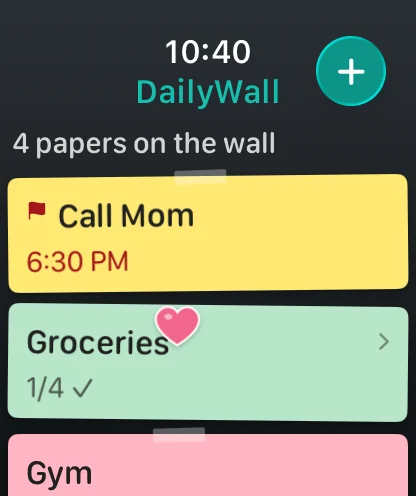
Today's notes and to-dos: a count of what is left, or the next task. DailyWall's Lock Screen widget shows how many notes are left today, the next note, or one line above the clock.
Countdowns: days until a trip, an exam or a birthday. One of the most searched widget types, and a perfect fit for a small circle.
Habits: a ring or a streak for one habit you are building, like water or reading. See our habit ideas.
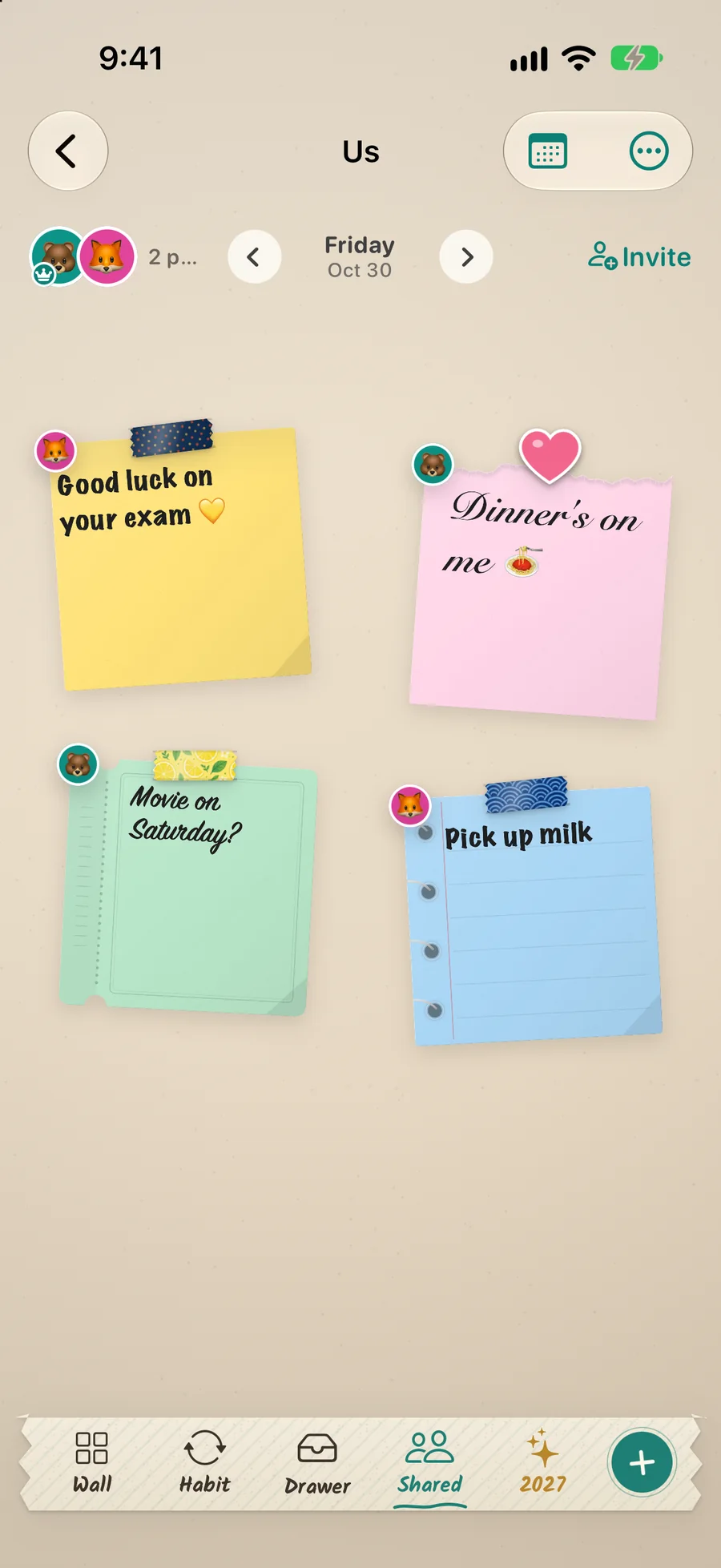
Shared notes: a partner's or roommate's latest note, so you see it without a chat thread. More in couples widgets.
Focus timers and screen-time counters for people who want fewer pickups, not more.
When a widget is too small: put your notes on the wallpaper
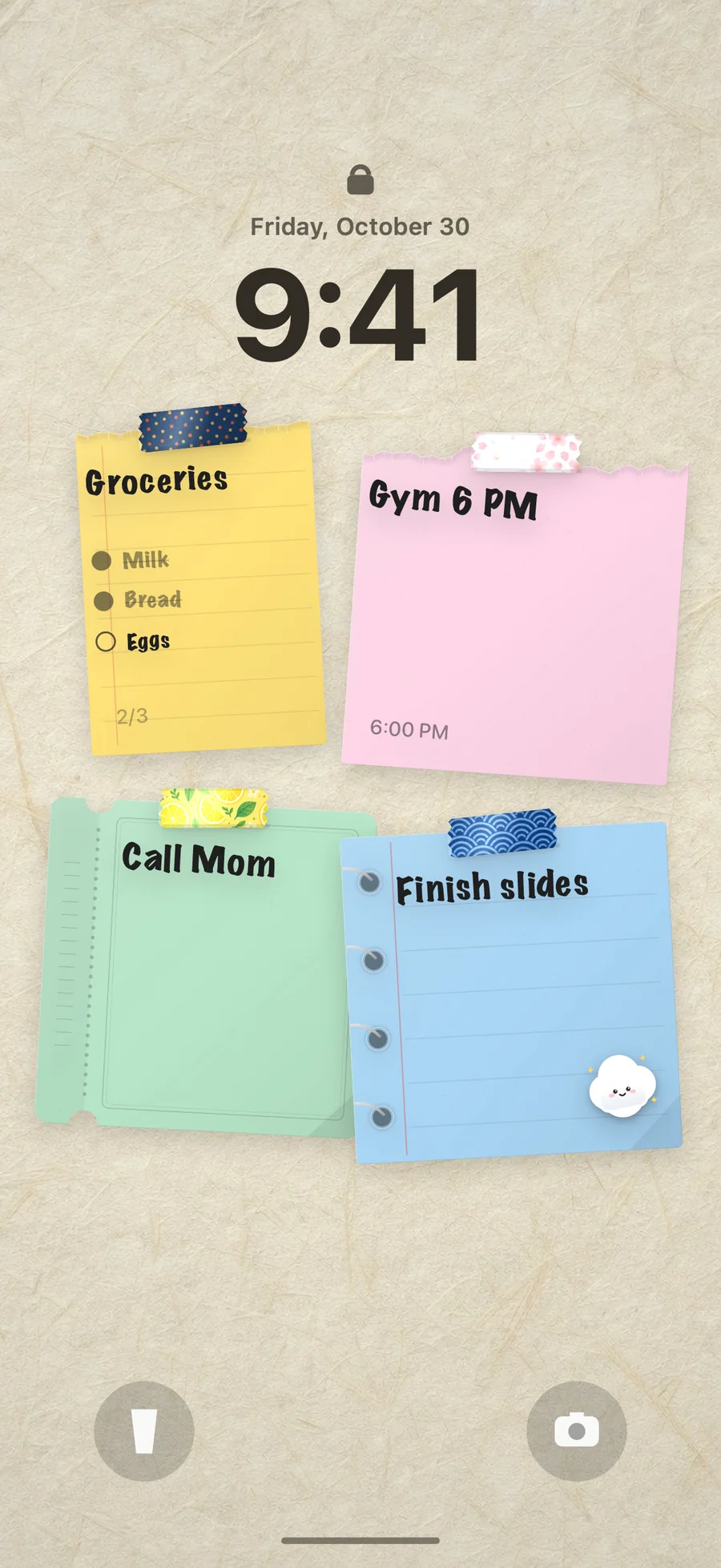
Every Lock Screen widget hits the same wall: one tint, a few words. If you want to read your actual notes, checklists and all, without unlocking, the widget is the wrong tool. The wallpaper has the whole screen.
DailyWall turns today's notes into your Lock Screen wallpaper: paper sticky notes with checklists, times, stickers and washi tape. A Shortcuts automation, set up once, sets the new wallpaper every time you close the app, so the Lock Screen always shows today. iOS still draws the clock and your widgets on top, so you keep both. The full walkthrough is in how to put notes on your iPhone Lock Screen.
Three Lock Screen widget setups that work
The planner: Calendar (rectangular) and Reminders (rectangular) under the clock, weather above it. Everything you need for the day before you unlock.
The minimalist: one circular notes count, one battery ring, the date above the clock, and today's three notes on the wallpaper. Calm and still useful.
The couple or family: a shared-notes widget, a countdown to the next trip, weather, and a shared wall as the wallpaper so everyone's notes are in view.
Lock Screen widgets not updating? Fixes
Widgets refresh on a schedule iOS decides, not instantly. If one looks stale for hours, open its app once; that usually wakes it.
Low Power Mode slows widget refreshes. So does a full storage.
If a widget shows nothing, remove it and add it again from Customize. For Reminders, check that the list you chose still exists.
Widgets on a Focus-linked Lock Screen only show when that Focus is on. If you switch Lock Screens with Focus, add the widget to each one.
Questions people ask
How do I add widgets to my iPhone Lock Screen?
Touch and hold the Lock Screen, tap Customize, choose the Lock Screen, then tap the area under the clock. Pick an app, choose a size, drag it into the row and tap Done.
How many widgets can I put on my Lock Screen?
Up to four small widgets under the clock (or two rectangular ones, or one rectangular plus two small), plus one inline widget in the line above the clock.
Can a Lock Screen widget show a whole note?
No. Lock Screen widgets show a short line, a number or a ring in a single tint. To see whole notes without unlocking, use a wallpaper made from your notes, like the one DailyWall sets automatically.
Can I use a different set of widgets for work and home?
Yes. Create two Lock Screens with different widgets and link each to a Focus. When the Focus changes, the Lock Screen and its widgets change with it.
Why don't I see an app's widgets in the list?
Open the app once after installing it. iOS lists an app's widgets only after the app has run, and only if the app offers Lock Screen widgets (some only have Home Screen widgets).
Do Lock Screen widgets drain the battery?
Very little. iOS limits how often widgets refresh. Low Power Mode slows them further.